 PocketTerm
Your computer's coding sessions, in your pocket.
Prompt, steer and answer omp and Claude Code from your iPhone or Android phone, and watch your other terminal windows live. The desktop app on your Mac or Windows PC runs your own PocketTerm server, and your phone reaches it over your own Tailscale network. Everything between them is end-to-end encrypted. There is no PocketTerm cloud.
Leave an agent working, walk away, and get a push when it finishes or needs you. Its questions and approvals take a tap.
1.0.0 coming soon · test build 0.1.6 on GitHub · macOS 13 or later · Windows 10 (1809) or 11, x64 · MIT
What it does
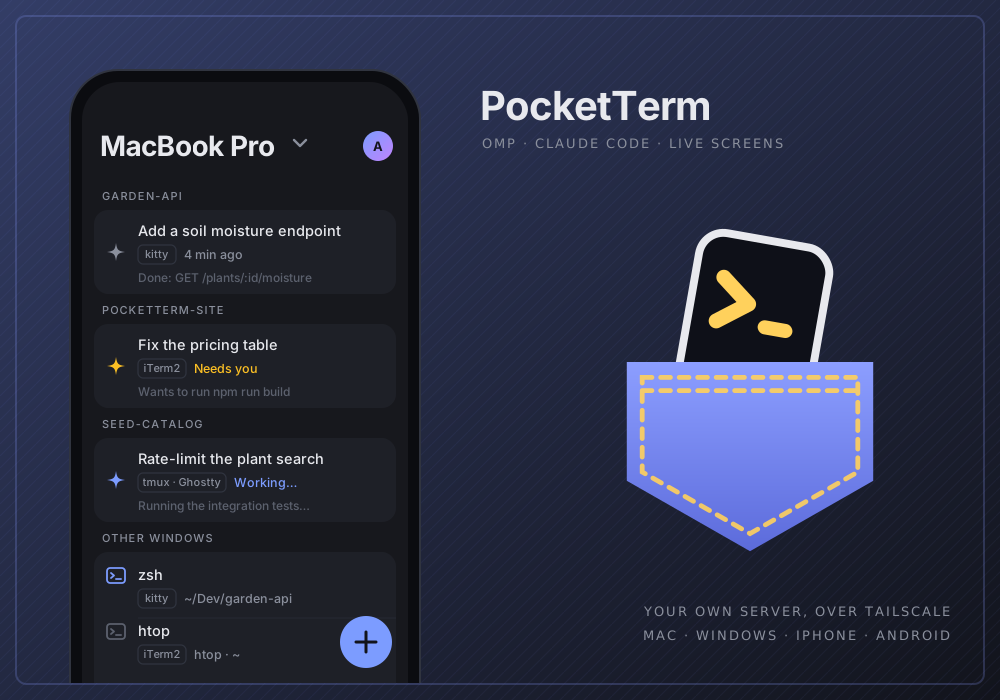
The phone app's Terminal tab lists the computer's omp and Claude Code sessions by project, and its other terminal windows below them. The sessions keep running on the computer; the phone shows and drives them.
Sessions as conversations
Answers stream in as Markdown and tool calls show as cards. Prompt, steer or queue, stop a run, and type
/for slash commands. Queued prompts wait on the computer, where you can edit, reorder or pause them from the phone.Images and files
Up to 10 per message from the camera roll, the clipboard or the phone's files, up to 20 MB each. The agent gets them as if you were at the computer: saved there and named in the prompt.
Questions and approvals
When the agent needs you, answer its question, approve its tool call or review its plan from the phone, with a tap.
Live screens
Any other terminal window, in color where the terminal provides it. Type into it and press keys like the arrows and Esc.
New sessions
Start your agent, or a shell, in any of your projects without taking the computer's focus. New project… makes the folder first. Swipe a row to end a session or close a window.
Ask about your sessions
An omp session on the computer that can see the others: it lists them, reads their conversations, and prompts or stops one when you ask.
Voice prompts
Say a prompt in English or Croatian. Speech is recognized on the phone itself.
Pushes
Opt-in pushes when a run finishes or the agent needs you, plus a Live Activity on iPhone and an ongoing notification on Android for the sessions you follow.
Several computers
One server, several Macs and Windows PCs on your tailnet. Pick one on the phone. Try the demo shows made-up sessions without any computer.
In the app
The phone's Terminal tab and a session, and the desktop app's setup checklist and Settings.
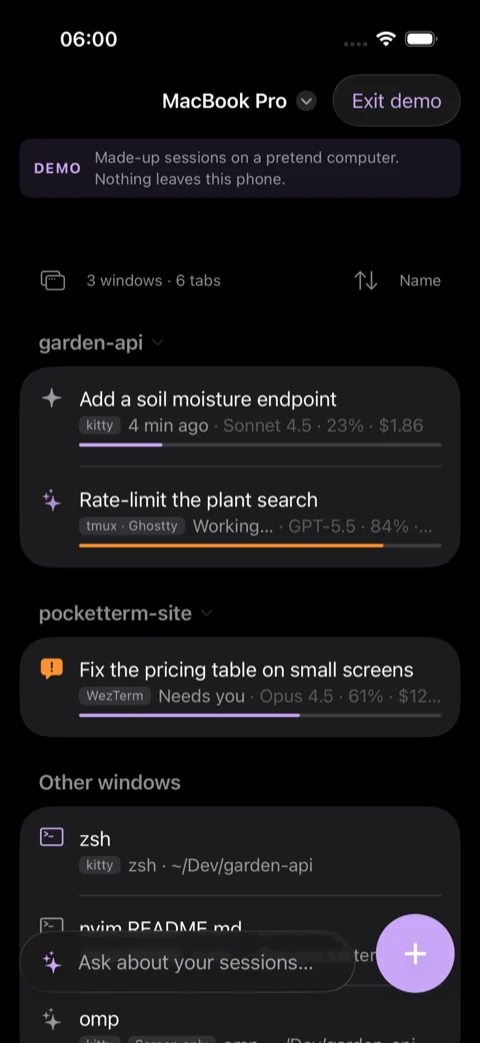
Sessions by project
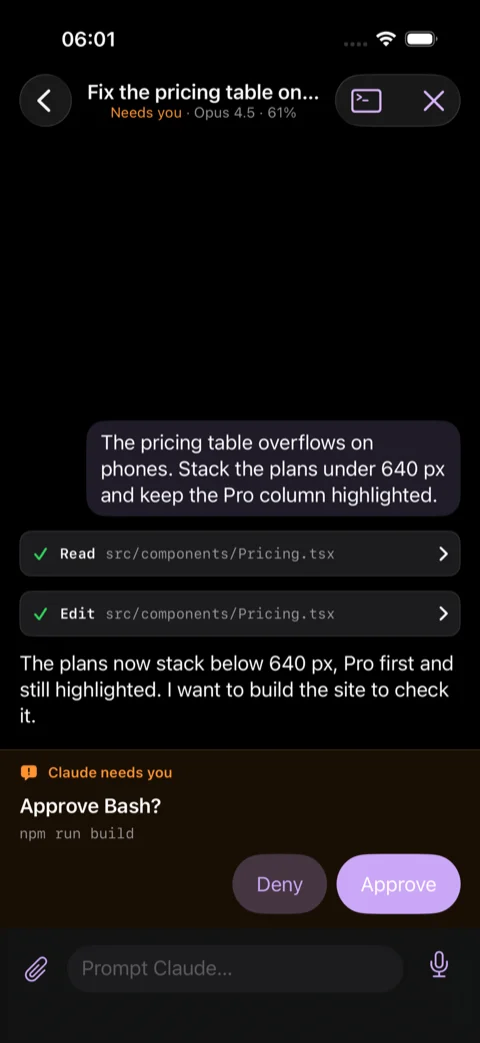
A session as a conversation
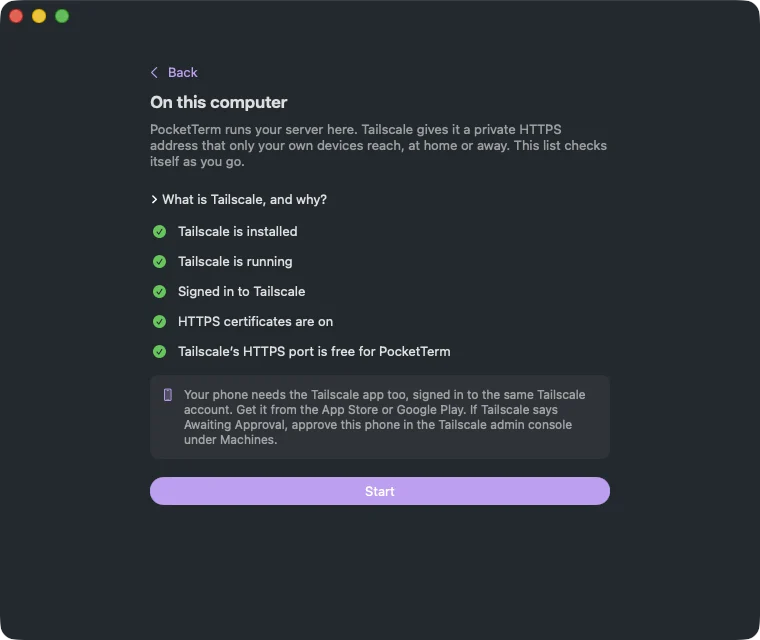
Setup over Tailscale
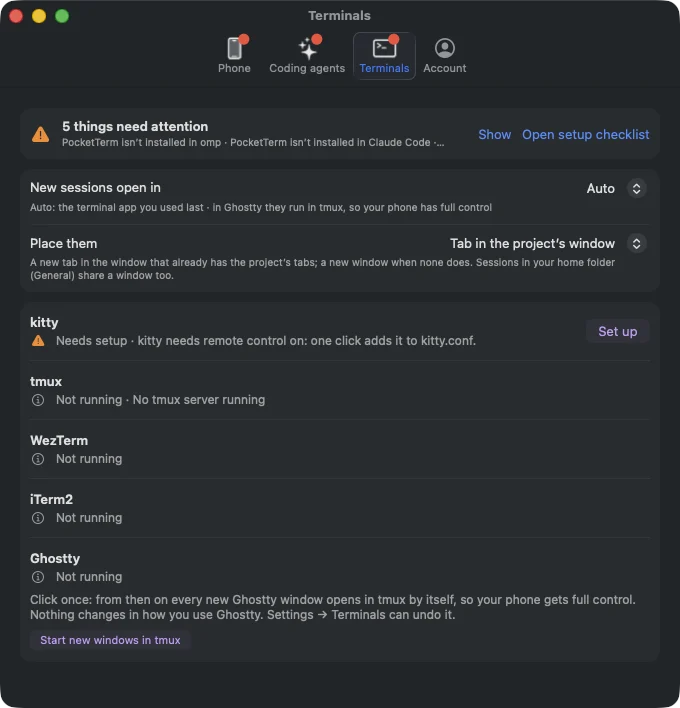
Settings
Screenshots of the real apps, on made-up data
Getting started
- InstallDownload the desktop app for your Mac or Windows PC. Install Tailscale on the computer and your phone, signed in to the same account; the free Personal plan is enough. The phone app is in TestFlight and Google Play internal testing for invited testers.
- Start the serverOpen PocketTerm on your computer. Its checklist checks Tailscale (installed, signed in, HTTPS on), then Start runs the server built into the app. It shows every command before it runs anything. Another computer joins with Join another computer's PocketTerm… and the link from Settings › Account › Add a computer… on the first.
- Get the computer readyThe checklist installs PocketTerm into omp and Claude Code, fixes up your terminals and offers your project folders.
- Scan the codeIn the phone app, scan the QR code the checklist shows (later: Settings › Phone › Add a phone…). It signs the phone in once, for 10 minutes, and carries the computer's key: show it only to your own phone.
PocketTerm lives in the menu bar on the Mac and in the tray on Windows. Quit PocketTerm in Settings › Account stops it.
Terminals
What the phone can do with a window depends on the terminal it runs in.
| Terminal | Platform | What works from the phone |
|---|---|---|
| kitty | macOS | Everything: sessions, live screens in color, keys and answers, closing windows |
| WezTerm | macOS, Windows | Everything |
| iTerm2 | macOS | Everything, with screens shown without colors |
| tmux, in any of these | macOS | Everything |
| Ghostty 1.3 or later | macOS | With tmux, everything. Without it, sessions and keys but no screen; answer questions on the computer |
- macOS: kitty needs one click in Settings › Terminals › Set up. iTerm2 and Ghostty need macOS's Automation permission. With tmux installed (
brew install tmux), the sessions the phone starts in Ghostty run inside tmux and get full control, and Start new windows in tmux does the same for windows you open yourself. - Windows: only WezTerm windows are listed, because it is the only Windows terminal another program can read and type into. The setup checklist and Settings › Terminals offer to install it.
- Claude Code needs version 2.1.287 or later. Any other program in a supported terminal shows as a live screen.
Your computer has to be awake, with PocketTerm running and Terminal from phone on. While it is on, PocketTerm keeps the computer from idle sleep, but a closed lid without an external display, sleep you start yourself or shutting down ends it, and the phone then says the computer isn't answering. A push goes out only when nobody has touched the computer for 60 seconds.
Your server, not mine
Your PocketTerm server runs inside the desktop app on your computer. It serves only your devices, and I have no access to it. Details, adding computers and how to remove everything: SELF_HOSTING.md.
- On your computer
- Built into the desktop app and free. It listens only on the computer itself, and Tailscale gives it a private HTTPS address that only your own devices reach, at home or away. It isn't reachable from the internet.
- Tailscale
- On the computer and the phone, signed in to the same account; the free Personal plan is enough. Tailscale sees which of your devices connect and when, not what they send.
- Several computers
- One computer runs the server. Others join it with the link from Settings › Account › Add a computer…, and the phone picks between them.
- End-to-end encrypted
- Each computer makes its own key, which reaches a phone only inside that computer's QR code. Sessions, prompts, screens, keystrokes, images, files and notification text are sealed with it, so your server can't read them. There are no PocketTerm accounts: a computer signs in with your server's setup link, a phone by scanning a code from a signed-in computer.
- Encrypted pushes
- Opt-in. My relay passes the sealed notification to Apple or Google and stores nothing. iPhone Live Activity updates can't be encrypted, so they carry only a session's state.
- No tracking
- No analytics, advertising or tracking SDKs in the apps. Read the privacy policy.
Status
- Version 1.0.0
- Coming soon. The first native release: SwiftUI on the Mac and iPhone, WinUI 3 on Windows, Jetpack Compose on Android, with the server built into the desktop app and Tailscale as the only way to reach it. This page describes 1.0.0. It isn't published yet.
- Mac
- Test build 0.1.6 until then. A notarized
PocketTerm-0.1.6.dmgon GitHub Releases that updates itself. Its setup also offers a VPS or Supabase; choose On this computer, the setup 1.0.0 keeps. macOS 13 or later. - Windows
- Test build 0.1.6 until then.
PocketTerm-0.1.6-setup.exeon GitHub Releases. It isn't code-signed yet, so SmartScreen warns: More info, then Run anyway. It installs for your user only, and Settings shows a link when a new version is out. Windows 10 (1809) or later, or Windows 11, x64. - iPhone
- TestFlight, for invited testers only. Not in the App Store yet. iOS 17 or later.
- Android
- Google Play internal testing, for invited testers only. Not public on Google Play yet. Android 8.0 or later.
- Not a tester?
- You can build the phone app from source with your own signing identity.
- License
- Open source under the MIT license. Issues and pull requests are welcome on GitHub.
Support
I'm Danijel, the developer. For questions, setup trouble or ideas, email me and I'll get back to you, or open an issue on GitHub. Setup problems are often covered by the troubleshooting table.
danijel@danyzmaj.comFound a security problem? Please report it privately through GitHub's vulnerability reporting, not in a public issue.